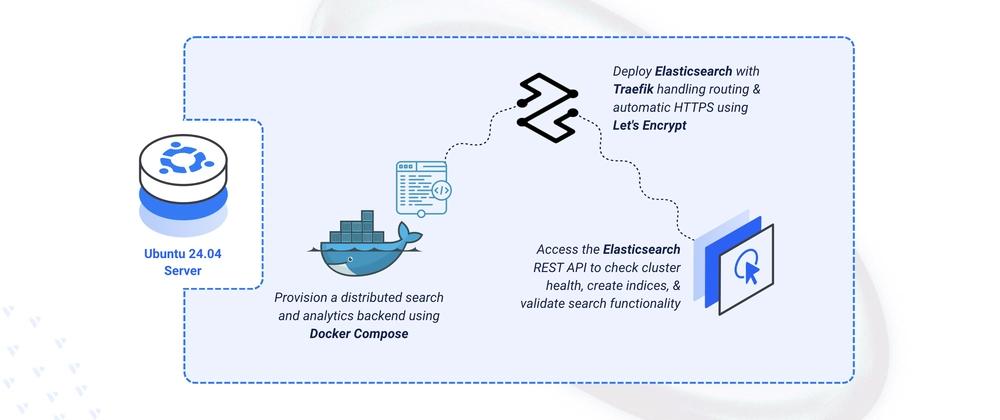
Elasticsearch is an open-source distributed search and analytics engine built on Apache Lucene, used for full-text search, structured queries, and log analytics. This guide deploys a single-node Elasticsearch instance using Docker Compose with Traefik handling automatic HTTPS, then verifies it via cluster health and index APIs. By the end, you'll have Elasticsearch serving indexed data over HTTPS at your domain.
Set Up the Directory Structure
1. Create the project directory structure:
$ mkdir -p ~/elasticsearch-logging/{elasticsearch-data,elasticsearch-config}
$ cd ~/elasticsearch-logging
2. Set ownership for the Elasticsearch data directory:
$ sudo chown -R 1000:1000 elasticsearch-data
3. Create the environment file:
$ nano .env
DOMAIN=elasticsearch.example.com
LETSENCRYPT_EMAIL=admin@example.com
4. Create the Elasticsearch configuration file:
$ nano elasticsearch-config/elasticsearch.yml
cluster.name: logging-cluster
node.name: node-1
network.host: 0.0.0.0
http.port: 9200
discovery.type: single-node
xpack.security.enabled: false
Deploy with Docker Compose
1. Create the Docker Compose manifest:
$ nano docker-compose.yaml
services:
  traefik:
    image: traefik:v3.6
    container_name: traefik
    command:
      - "--providers.docker=true"
      - "--providers.docker.exposedbydefault=false"
      - "--entrypoints.web.address=:80"
      - "--entrypoints.websecure.address=:443"
      - "--entrypoints.web.http.redirections.entrypoint.to=websecure"
      - "--entrypoints.web.http.redirections.entrypoint.scheme=https"
      - "--certificatesresolvers.letsencrypt.acme.httpchallenge=true"
      - "--certificatesresolvers.letsencrypt.acme.httpchallenge.entrypoint=web"
      - "--certificatesresolvers.letsencrypt.acme.email=${LETSENCRYPT_EMAIL}"
      - "--certificatesresolvers.letsencrypt.acme.storage=/letsencrypt/acme.json"
    ports:
      - "80:80"
      - "443:443"
    volumes:
      - "letsencrypt:/letsencrypt"
      - "/var/run/docker.sock:/var/run/docker.sock:ro"
    restart: unless-stopped

  elasticsearch:
    image: docker.elastic.co/elasticsearch/elasticsearch:latest
    container_name: elasticsearch
    hostname: elasticsearch
    expose:
      - "9200"
    volumes:
      - "./elasticsearch-data:/usr/share/elasticsearch/data"
      - "./elasticsearch-config/elasticsearch.yml:/usr/share/elasticsearch/config/elasticsearch.yml"
    environment:
      - ES_JAVA_OPTS=-Xms1g -Xmx1g
    labels:
      - "traefik.enable=true"
      - "traefik.http.routers.elasticsearch.rule=Host(`${DOMAIN}`)"
      - "traefik.http.routers.elasticsearch.entrypoints=websecure"
      - "traefik.http.routers.elasticsearch.tls.certresolver=letsencrypt"
      - "traefik.http.services.elasticsearch.loadbalancer.server.port=9200"
    restart: unless-stopped

volumes:
  letsencrypt:
2. Start the services:
$ docker compose up -d
3. Verify the services are running:
$ docker compose ps
$ docker compose logs
Access Elasticsearch
1. Check cluster health:
$ curl https://elasticsearch.example.com/_cluster/health?pretty
2. Create a test index:
$ curl -X PUT "https://elasticsearch.example.com/test-index" \
    -H 'Content-Type: application/json' \
    -d '{"settings":{"number_of_shards":1,"number_of_replicas":0}}'
A {"acknowledged":true} response confirms the index was created.
Next Steps
Elasticsearch is running and serving over HTTPS. From here you can:
- Re-enable
xpack.securityand configure built-in users for production access - Ship logs into indices with Filebeat, Logstash, or Vector
- Add Kibana to visualize and query indexed data through the browser
For the full guide with additional tips, visit the original article on Vultr Docs.