If you've watched an AI coding agent build a to-do app in two minutes, you've probably asked yourself the obvious next question: sure, it can make a demo, but can it ship something real?
To find out, I gave Google Antigravity a real cloud job: build an event-driven document pipeline on Google Cloud, deploy it, and prove it works. It did most of the typing. But the most important moments were the ones where I had to stop and think, and that's the trade-off this post is about.
This post accompanies my DevFest Onitsha 2026 talk, and follows the official Build and Deploy to Google Cloud with Antigravity codelab.
Here is the link to the Demo on Youtube. Watch Demo
By the end of this article, you will be able to:
- Describe a serverless pipeline clearly enough for an agent to build it
- Use
/grill-meand the Implementation Plan to catch mistakes before any code exists - Generate, test and deploy the pipeline with your approval at each step
- Verify the result yourself, instead of taking the agent's word for it
- Add a simple frontend that shows the processed documents
- Spot what still stands between this prototype and production
Prerequisites
- Google Antigravity, installed and signed in
- A Google Cloud project with billing enabled
- The gcloud CLI, installed and authenticated
- A detailed prompt. The more clearly you describe the system, the better the result.
Worth knowing: billing is on for this project. Use a dedicated project, so cleaning up later is as simple as deleting it.
Go to Google Cloud Console, Sign in/Sign Up, Then open up the cloud console.


1. The Architecture: What We're Building
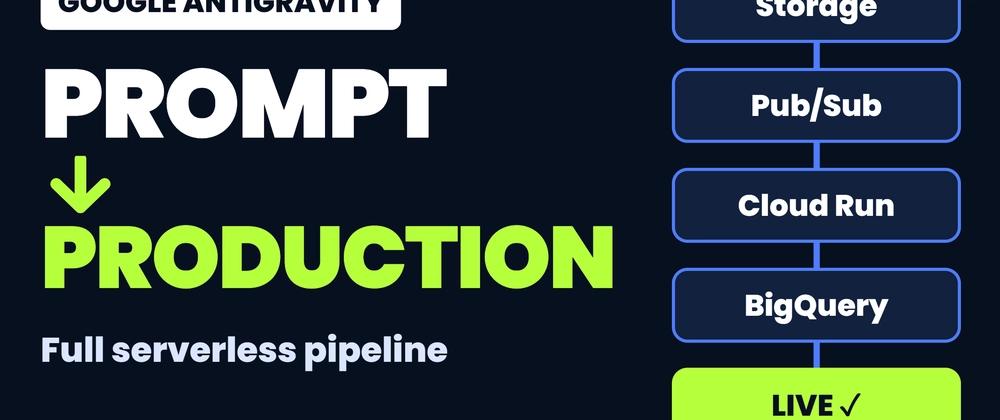
The idea is simple: upload a file, get searchable metadata in BigQuery. No server sits around waiting. Work happens only when an event arrives.
  [ You upload a file ]
           │
           ▼
  ┌──────────────────┐
  │  Cloud Storage   │  1. Ingest: the file lands in a bucket
  └────────┬─────────┘
           │  bucket notification (new file)
           ▼
  ┌──────────────────┐
  │     Pub/Sub      │  2. Trigger: the event becomes a message
  └────────┬─────────┘
           │  push subscription
           ▼
  ┌──────────────────┐
  │    Cloud Run     │  3. Process: Python reads the file,
  │  (Flask service) │     extracts tags and word count
  └────────┬─────────┘
           │  streaming insert
           ▼
  ┌──────────────────┐
  │     BigQuery     │  4. Store: one row per document, ready for SQL
  └──────────────────┘
Think of Pub/Sub as the messenger. It says, "A new file just arrived. Somebody deal with it," and Cloud Run is the somebody.
Note: in this build, OCR is simulated. Plain text files get real word counts and tags. PDFs and images get synthetic results. That keeps the focus on the pipeline itself, and I'll show where real AI fits in section 6.
2. Set the Guardrails, Then Plan
Step A: Set the guardrails
Create a new project in Antigravity and add an empty folder, such as google-cloud-serverless-app.

Before typing a single prompt, open the project settings and set:
- Security Preset → Default
- Artifact Review Policy → Always Ask

That second setting is the important one. The agent can write code and run terminal commands against a real cloud project, so we want it to show its work and wait for approval.
Step B: Describe the system, not just the app
Here's the prompt from the codelab. Notice it doesn't say "build me a cool app." It names each part of the architecture and the exact fields to store.

/grill-me

I want to build a serverless event-driven document processing pipeline on Google Cloud.
Architecture:
- Ingestion: Users upload files to a Cloud Storage bucket.
- Trigger: File uploads trigger a Pub/Sub message.
- Processor: A Python-based Cloud Run service receives the message, processes the file (simulated OCR), and extracts metadata.
- Storage: Stream the metadata (filename, date, tags, word_count) into a BigQuery dataset.
Step C: Let the agent grill you
/grill-me tells the agent to ask questions before it writes any code, and it suggests an answer for each one. These were the decisions that shaped my build:


| Decision | What I chose |
|---|---|
| How events reach Cloud Run | Cloud Storage notification → Pub/Sub → push subscription |
| Framework | Flask with Gunicorn |
| Storage | BigQuery streaming inserts |
| Failure handling | HTTP 500 for temporary errors, 200 or 204 for permanent ones |
| Endpoint access | Public, unauthenticated (prototype only) |
The failure-handling answer is the one I'd frame and hang on the wall:
Something went wrong while processing a message
        │
        ├── Temporary? (BigQuery hiccup, network blip)
        │        └── ❌ return 500 → Pub/Sub retries
        │
        └── Permanent? (the file no longer exists)
                 └── ✅ return 200/204 → stop retrying
Without the second branch, one bad message keeps coming back forever. That's called a poison pill, and it's easy to miss on a first draft.
Worth knowing: I chose a public endpoint because it's quick to test. Keep that in mind, because we'll come back to it.
Step D: Review the Implementation Plan
After the questions, Antigravity produces an Implementation Plan artifact, and no code exists yet. Read it. Check the project ID, region and resource names, and comment directly on anything that's wrong.


Think of it as reviewing a design doc before the first commit: it's the cheapest moment to fix a mistake.

When it looks right, click Proceed.
3. Generate, Test and Deploy
Step A: Watch it build, and read before you approve
The agent now writes the application and its deployment scripts. Every so often it pauses to ask permission for a terminal command. Read each one before you approve it, because this is where you stay in control.
Your file names may differ, but you should end up with something like this:

Step B: Test locally first
Before anything touches the cloud, the agent generates and runs a local test suite with mocks, including a simulated upload, a missing file and a temporary BigQuery failure. In my run, 11 tests passed.
pytest tests/ -v
Note: passing tests with mocks proves the logic works in isolation. It doesn't prove the pipeline works on Google Cloud. That comes next.

Step C: Deploy
Confirm gcloud is pointing at the right project, then give the agent the shortest prompt of the whole build:
Deploy the application for me

Before deployment, Antigravity will generate a Deployment Plan Artifiact.

The deployment comes down to two variables and two layers:
Deployment is handled across two layers: and
Variables:
- Set
GCP_PROJECTandGCP_REGION.
Layers:
-
Dockerfile (Root Directory)Container Packaging (for building the Cloud Run image). -
terraform/ DirectoryTerraform Infrastructure as Code (for provisioning and wiring all Google Cloud resources).
That's the whole architecture from section 1, wired together.

4. Verify It Yourself
When the deployment finishes, Antigravity gives you a Walkthrough artifact: what it built, where it lives and the live BigQuery output from the test run. That's useful, but my rule is simple: trust, but verify.


Check out these useful commands for uploading to cloud storage and querying BigQuery.

Upload a file of your own: Here, I added a pdf file to my project folder and uploaded the pdf file (NeedsWants_Worksheet.pdf) to cloud storage

I also asked Antigravity to create and upload a demo file:


Note: use the bucket, dataset and table names from your own Walkthrough. The agent may name them differently on each run.
If a new row appears, voila! A file went in, an event fired, a container woke up and a row came out. Check the status column too: plain text files should show real extracted text, while PDFs take the simulated OCR path.
Then do a quick tour of the console:
-
Cloud Storage: the bucket and your uploaded files


- Pub/Sub: the topic and its push subscription


- Cloud Run: a healthy service, with logs showing each document being processed


- BigQuery: your rows in the metadata table


5. Add a Frontend to See the Results
A BigQuery query proves the pipeline works, but nobody wants to open a terminal every time they check their documents. So I gave the agent one more task: a simple frontend to view the output.
I used the prompt suggested in the codelab:
Create a Flask web application that connects to BigQuery. It should display a table of the processed documents (filename, upload_date, tags, word_count) and allow me to filter the results by tag

The same loop applied: the agent asked a few questions, produced a plan, and I reviewed it before any code was written. A few minutes later, I had a page listing every processed document, with a tag filter at the top.

This is where the pipeline starts to feel like a product. Upload a file to the bucket, refresh the page, and a new row appears, with no SQL needed.
Worth knowing: the frontend reads from BigQuery, so it needs permission to query your dataset. Use your own credentials while testing locally, and give it a dedicated service account with read-only access if you deploy it.
Note: if you deploy the frontend, don't make it public by default. It shows every document's metadata, so the authentication advice in the next section applies here too.
6. What Production-Ready Really Takes
Let me be honest about the word in the title. We reached a production environment, but this isn't production-ready yet. Before real users touch it, here's what I'd change, in order:
- Require authentication. Remember that public endpoint? Right now, anyone with the URL can send requests to the service. Make Cloud Run require authentication, and have the push subscription prove who it is with a service account.
- Add a dead-letter queue. If a message fails again and again, move it to a dead-letter topic where a human can inspect it, instead of losing it or retrying forever.
- Keep secrets in Secret Manager, not in code or environment files.
- Replace the simulation with real AI. Send images and PDFs to Gemini on Vertex AI to extract the actual text, classify the document (invoice, contract or résumé), pull out dates and names, and translate it to English before storing it.
The nice part is that every one of these can start the same way the pipeline did. For example:
Harden this pipeline. Require authentication on the Cloud Run service and configure
the Pub/Sub push subscription to use an authenticated service account. Add a
dead-letter topic for messages that fail 5 delivery attempts. Show me the
implementation plan first.
Describe it, review the plan, then verify the result.
From there, the codelab suggests more ideas: lifecycle rules that move old files to cheaper storage, and Eventarc for richer event routing.
Worth knowing: when you're done experimenting, clean up. If you used a dedicated project, deleting it is the simplest way to stop all charges.
Wrapping Up
So, can an AI agent ship something real? Yes. But look at what made the difference: the prompt was the smallest part. The real work was describing the system clearly, setting guardrails, reviewing the plan, questioning the security choice and verifying the result yourself.
AI can write the code. Engineering judgment is still your job.
If you want a next step, try the smallest possible version: run the codelab, upload one file of your own and watch the row appear. Then pick one item from section 6 and build it with the same describe, review, verify loop.
What would you add to this pipeline first: real Gemini processing, a dashboard or a dead-letter queue? Let me know in the comments.
I'm Caleb Duff, a GDG Cloud Organizer. I share more on cloud and AI on YouTube at Techie From The Future. You can also find me on LinkedIn and on X as @duffygoogle.